
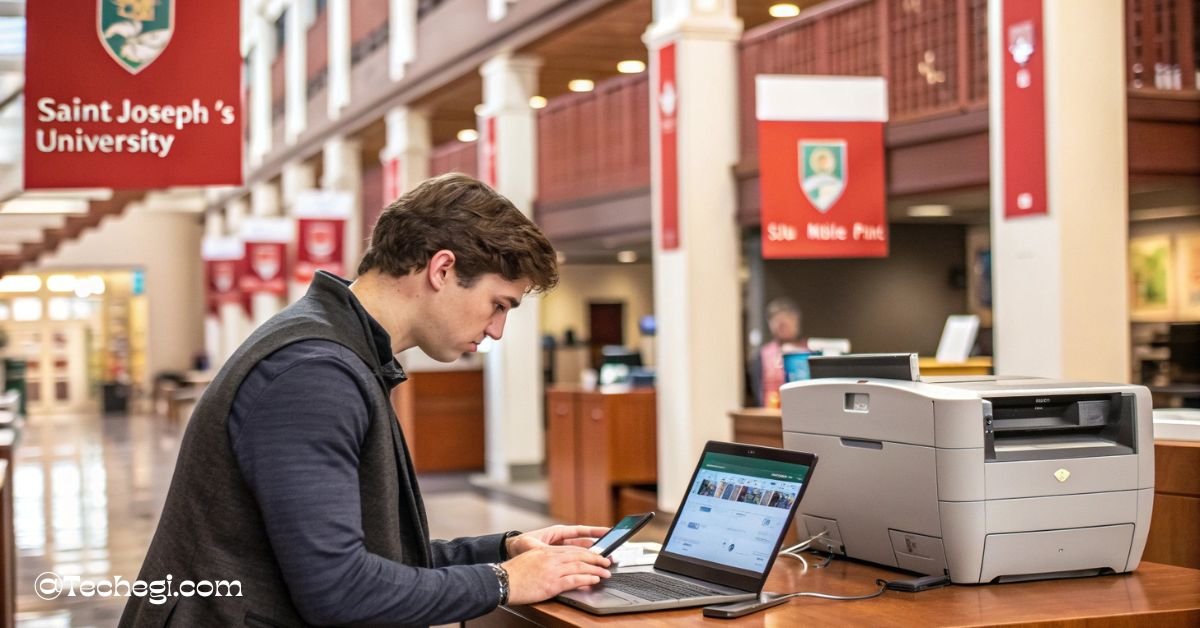
SJU Mobile Print is Saint Joseph’s University’s cloud-based printing service that allows students, faculty, and staff to print documents from any device. Users can upload files via email, web portal, or app and release them at the campus printers. It’s fast, secure, and convenient for academic printing needs.
Stay tuned with us — we’ll be diving deeper into everything you need to know about SJU Mobile Print to help you print smarter and faster on campus.
What Is SJU Mobile Print?
SJU Mobile Print is Saint Joseph’s University’s cloud-based printing system designed to make campus printing easy and accessible for students, faculty, and staff. It allows users to print documents from laptops, smartphones, or tablets without needing to connect to a printer directly. Whether you’re in the dorms, SJU Library, or a classroom, SJU Mobile Print ensures you can send your documents to campus printers anytime, from anywhere.
The system was introduced to reduce long lines at traditional computer labs and offer a more flexible solution. Users can submit print jobs remotely and release them at any university-designated printer at their convenience. This makes it ideal for students juggling tight schedules or working late at night.
Moreover, mobile print promotes contactless printing, which became especially valuable during and after the pandemic. As a result, it is now an essential tool in the daily lives of SJU students.
How Does SJU Mobile Print Work?
SJU Mobile Print uses cloud-based technology to handle document submission and secure release printing. Once a file is uploaded or emailed, it’s stored in a secure print queue tied to the user’s SJU Mobile Print login account. From there, users can walk up to any compatible printer station on campus and release the job using their SJU ID card or credentials.
The system operates using a platform such as SJU My Print Center, offering flexibility and compatibility across devices. All print jobs remain in the queue for a specific period (usually 24–72 hours), giving users ample time to access and print them when needed.
To ensure security, each print job is only released after user authentication. This prevents unauthorized access to sensitive files and reduces unnecessary printing, supporting both user privacy and sustainability goals.
Devices and File Types Supported
SJU Mobile Print supports a wide range of devices and file types, making it convenient for virtually all users. Whether you’re using a MacBook, Windows laptop, Android phone, or iPhone, you can send print jobs without compatibility issues.
Mobile phones and tablets are supported via web upload portals or the SJU Mobile Print app, while laptops can use email or browser-based tools. Most commonly used file formats are accepted, including:
- PDF
- Microsoft Word (.doc, .docx)
- PowerPoint (.ppt, .pptx)
- Excel spreadsheets
- Image files like JPG and PNG
Before submitting, users are encouraged to preview their documents and check formatting, as some complex layouts or fonts may not render correctly during the cloud-based processing.
Step-by-Step Guide: How to Use SJU Mobile Print
Getting started with SJU Mobile Print is simple. Below are the most common methods:
Method 1: Print via Email
Students can email their documents directly to the university’s mobile print address, such as mobileprint@sju.edu. The document should be sent from a registered SJU email account to ensure automatic authentication.
Once the email is sent, the system queues the job. You’ll then be able to release it at any supported printer by logging in with your SJU Mobile Print login credentials.
Make sure the file is attached correctly and isn’t embedded in the email body. Double-check that it’s in a supported format to avoid processing errors.
Method 2: Print via Web Upload (MobilePrint Portal)
The most flexible method is using the web portal—usually available at mobileprint.sju.edu. Here, users log in with their SJU ID and password, then upload files directly from their device or cloud storage (like Google Drive or Dropbox).
After upload, the file is added to your SJU My Print Center queue. You can view print details, adjust settings (such as double-sided printing or color), and track usage history.
This method works well for users printing from shared or public computers.
Method 3: Print via App (If Applicable)
If SJU uses a print service app like the SJU Mobile Print app, students can download it on their phone or laptop. These apps integrate with the campus network and allow real-time print submission.
Once logged in, you can browse nearby printers, submit jobs, and even check your balance. This method is great for on-the-go users who regularly print from mobile devices.
Where to Release Your Print Job
SJU has strategically placed printers across campus to provide maximum convenience. You can release your mobile print job at any of these authorized print stations by logging in or swiping your SJU ID card.
Common release points include:
- SJU Library (all floors)
- Student center
- Residence hall lobbies
- Academic buildings
- Computer labs
Each printer station typically has a touchscreen or card reader interface. After logging in, you’ll see a list of pending print jobs—you can choose which ones to release or delete.
It’s important to release your print jobs within the system’s hold time (usually 24–72 hours) to avoid auto-deletion.
Cost of Printing and Payment Options
SJU Mobile Print cost is reasonable and student-friendly. Users usually receive a free print quota each semester, usable for both black-and-white and color jobs.
Here’s a general idea of the SJU Mobile Print price breakdown:
| Print Type | Cost per Page |
| B/W Single-Sided | $0.10 |
| B/W Double-Sided | $0.08 |
| Color Print | $0.25 |
After using the free allocation, additional prints are paid for through Hawk Cash or another payment system linked to the SJU Nest portal, where you can also manage your student account and upload funds.
Troubleshooting Common Issues with SJU Mobile Print
Even the best systems can hit snags. Here are common issues and their solutions:
Print Job Not Appearing at Release Station
This usually occurs if the file was not submitted correctly. Check if:
- The file format is supported
- You sent it from your SJU email
- It hasn’t expired from the queue
Try resending or re-uploading the file through another method.
Login or Authentication Problems
Ensure you’re using your current SJU Mobile Print login credentials. If you’ve recently changed your password, log out and log back in. If issues persist, visit the SJU Print Center or the IT Help Desk for support.
Two-factor authentication systems can sometimes interfere with login—make sure your device is authorized.
Unsupported File Errors
If a file fails to process, convert it to PDF first. Tools like Google Docs or Microsoft Word’s “Save As” function can help ensure compatibility.
Avoid submitting files with uncommon extensions or embedded scripts, as these often trigger system rejections.
Tips for Efficient Printing at SJU
To get the most out of SJU Mobile Print:
- Always preview your document before submitting
- Use double-sided printing to save paper
- Print in black-and-white unless color is essential
- Submit jobs during off-peak hours (early morning or late evening)
- Keep track of your SJU Mobile Print cost to avoid interruptions
Proper planning can help you avoid last-minute hassles during assignment deadlines or exam weeks.
Accessibility and Eco-Friendly Practices
SJU Mobile Print is designed with inclusivity and sustainability in mind. Students with disabilities can access assistive printing features via compatible devices, and printer stations are wheelchair accessible.
The university also promotes green printing by:
- Encouraging duplex printing
- Limiting color prints
- Using recycled paper
- Implementing quota systems to prevent waste
These efforts align with SJU’s broader commitment to environmental responsibility and digital equity.
SJU Mobile Print Support and Help Desk
If you encounter any issues, the SJU Print Center and SJU IT Support Center are your go-to resources. Support is available via:
- Phone: SJU IT Hotline (available on the university website)
- Email: helpdesk@sju.edu
- In-person: IT Help Desk at the SJU Library or the student center
Online guides, FAQs, and video tutorials are also available on the university’s official website to help you navigate common printing tasks.
Frequently Asked Questions (FAQs)
1. Can I print from off-campus using SJU Mobile Print?
Yes. You can email documents or use the web portal to submit print jobs remotely. Just release them once you’re on campus.
2. What if my print quota runs out before the semester ends?
You can continue printing by adding funds through SJU Nest or Hawk Cash.
3. Is color printing available on all printers?
No. Only specific stations support color. Check the signs or the web portal for details.
4. How long do print jobs stay in the queue?
Jobs typically stay in the system for 24 to 72 hours, depending on the current policy.
5. Can visitors or guests use SJU Mobile Print?
Usually not. Only registered students, faculty, and staff can access the system with valid credentials.
Final Thoughts: Making the Most of SJU Mobile Print
SJU Mobile Print offers a modern, flexible, and efficient way to handle your printing needs on campus. Whether you’re submitting assignments from your dorm or preparing study guides in the SJU Library, this system ensures your print jobs are always just a few clicks away.
By understanding how it works, taking advantage of its features, and following smart printing habits, students can save time, reduce waste, and stay productive throughout the semester.
Also read:
- Monopoly GO Snow Mobile Token Guide & Tips!
- Customer Care Bank Mobile Support Guide 2025!
- Aluis Mobile Car Detailing: Expert Service at Your Doorstep!