
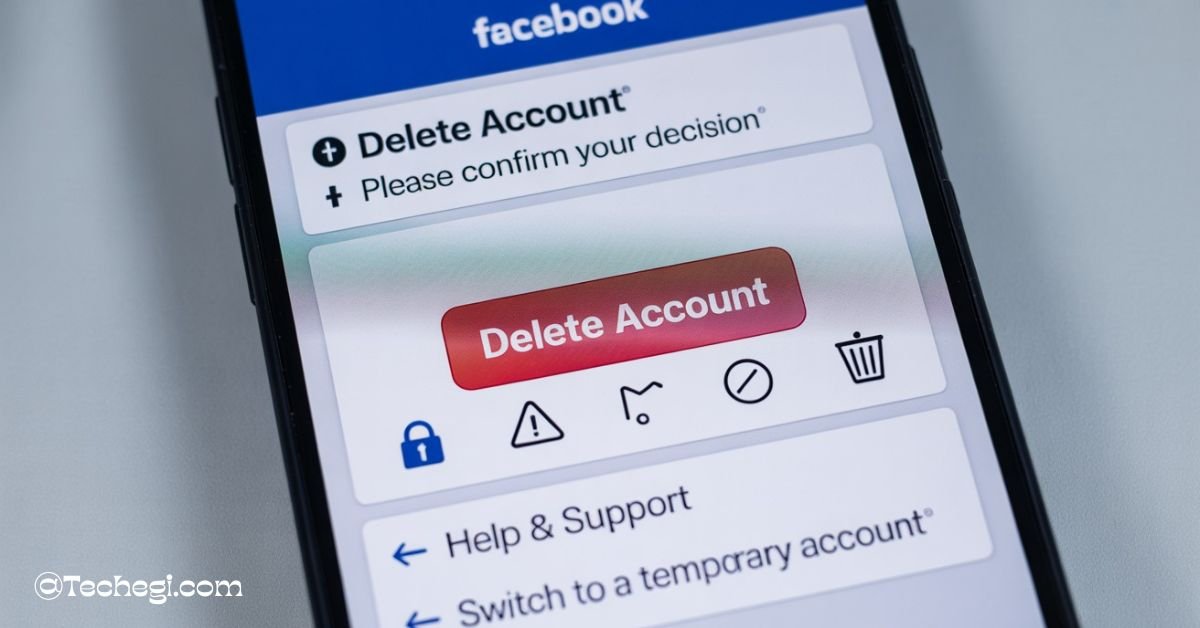
To delete FB account permanently from mobile device, open the Facebook app, go to Settings > Account Ownership and Control > Deactivation and Deletion, and choose “Delete Account.”
Follow the on-screen steps and confirm with your password.
Ensure that you download your data before deletion, as the process is irreversible after 30 days.
Stay tuned with us — we will discuss additional ways to manage your digital presence, including how to secure your online accounts and explore safer social media alternatives.
Introduction
In today’s hyper-connected world, many people are reassessing their relationship with social media. If you’ve found yourself asking how to delete FB account permanently from mobile, you’re not alone. Whether it’s for digital detox, privacy concerns, or mental well-being, more users are seeking a way to completely remove their Facebook presence without ever touching a desktop. This guide walks you through the entire process, offering clear, step-by-step instructions and practical advice to ensure you make an informed and permanent decision.
From understanding the difference between deactivation and permanent deletion, to backing up your memories and ensuring all digital ties are cut, this article provides you with all the tools needed to how to permanently delete Facebook account directly from your mobile device.
How to Deactivate Facebook Account vs. Delete Facebook: Key Differences
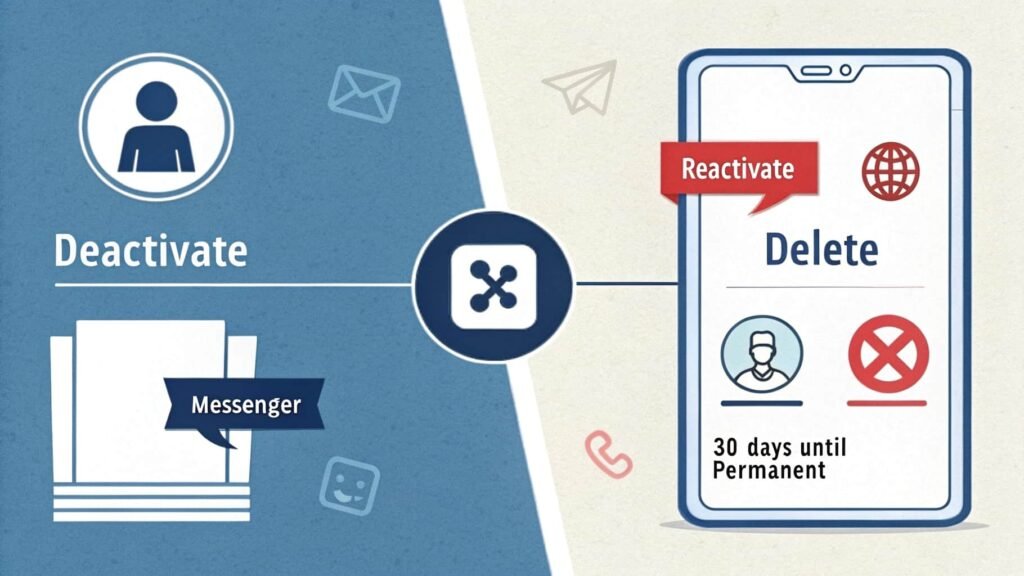
Before you take any action, it’s important to understand the difference between deactivating and deleting your Facebook account.
Deactivation is a temporary measure. When you deactivate:
- Your profile becomes invisible to others.
- You can still use Messenger.
- You can reactivate anytime by simply logging back in.
In contrast, deletion is a permanent process:
- Your entire profile, including photos, posts, videos, and comments, is scheduled for permanent deletion.
- You lose access to Facebook Messenger.
- You get a 30-day grace period in case you change your mind.
- After 30 days, your data will be removed entirely, and you will no longer be able to reactivate the account.
Use-case scenarios differ. How to deactivate Facebook account may suit users taking a break or protecting their privacy temporarily. Deletion is best suited for those seeking a complete exit from the Facebook ecosystem due to concerns about data privacy, digital minimalism, or mental health reasons. According to Lifewire, VPN Society, and UMA Technology, users should carefully assess their goals before making a decision.
Prepare Before Deleting on Mobile
If you’re determined to delete your account permanently, preparation is essential. The first step is to download your Facebook data. This includes posts, photos, messages, comments, and even account activity logs. To do this on mobile:
- Open the Facebook app and go to Settings & Privacy.
- Tap Settings > Your Facebook Information.
- Select Download Your Information.
- Choose the data range, format (HTML or JSON), and media quality.
- Tap “Create File” and wait for the download link to be sent via email or notification.
Next, review all the apps and services you’ve connected to Facebook Login. If you’ve used your account to log in to third-party apps, such as Spotify, Instagram, or websites, those connections will be lost. Go to Settings > Apps and Websites to identify and update login credentials before deletion.
Let your family, friends, or professional contacts know you’re leaving Facebook. Some may rely on Messenger to reach you. Redirect them to other platforms or provide alternate contact info.
Lastly, if you’re an admin of any Facebook Groups or Pages, transfer ownership or admin rights. This prevents these pages from becoming orphaned or losing management access after your account is gone.
How to Delete Facebook Account on Android – Step-by-Step
Once you’re ready, here’s the detailed process for how to delete FB account permanently from mobile:
- Launch the Facebook app on your iPhone or Android.
- Tap the menu icon (three horizontal lines). It’s at the top-right for Android and bottom-right for iOS.
- Scroll down and tap Settings & Privacy, then Settings.
- Under the Account Settings section, select Personal and Account Information or Your Facebook Information.
- Tap Account Ownership and Control.
- Select Deactivation and Deletion.
- Choose Delete Account and then tap Continue to Account Deletion.
- Follow the on-screen instructions. Facebook may ask you to download your data or manage pages.
- Enter your password to confirm your identity.
- Tap Delete Account to finalize.
If you’re using an iPhone, follow the same steps — this applies to those searching how to delete fb account permanently from mobile on iPhone as well.
For quicker access, you can also go directly to the Delete Facebook account link via your mobile browser for a more direct path.
Once this is done, your account enters a 30-day grace period. If you log in during this time, the deletion is canceled, and your account is reactivated.
How to Delete FB Account Permanently from Mobile Video Guide
Many users prefer a visual walkthrough. Search how to delete fb account permanently from mobile video on YouTube or trusted tech tutorial sites for easy-to-follow video instructions tailored for Android and iPhone.
After You Hit Delete
After initiating deletion, Facebook grants you a 30-day grace period. During this time, you can change your mind by logging in and canceling the deletion request.
If no action is taken, your account will be permanently deleted after 30 days. However, Facebook notes that it can take up to 90 days to fully delete all of your data from their servers, including backups stored for system recovery and compliance purposes.
Here’s what happens to your data:
- Posts and media are removed from your timeline and Facebook servers.
- Messenger access is revoked, and messages you’ve sent to others will show as “Facebook User.”
- Comments, likes, and tags on others’ content may remain but won’t be linked to your profile.
This process is irreversible. Ensure you’re fully ready to leave the platform before completing these steps.
Final Checks Before & After Deletion
Before confirming deletion, do a final review:
- Verify that your downloaded data includes all necessary components.
- Update third-party app logins that used Facebook authentication.
- Transfer ownership of any groups or business pages.
- Delete or log out of the Facebook and Messenger apps to avoid accidental login.
- Avoid logging in during the 30-day grace period to ensure the deletion completes.
After deletion is finalized, you may still appear in group posts, tagged photos, or past conversations. However, no one will be able to click on your profile or send you a message.
Troubleshooting & FAQs
1. Why can’t I delete my Facebook account?
Some users ask: Why can’t I delete my Facebook account? This usually happens due to:
- Not entering the correct password
- Having active admin roles on pages/groups
- Attempting deletion from unsupported versions of the app
- A pending security check or appeal on your account
Ensure you’ve completed all requirements, and update the app if necessary.
2. Can I delete my account without a password?
No. If you’ve forgotten your password, you’ll need to reset it first through the “Forgot Password” option on the login screen.
3. Does deleting the Facebook app delete my account?
No. Uninstalling the app only removes it from your device, not from the App Store. Your account remains active unless you complete the entire deletion process.
4. Can I recover my account after it has been deleted?
Only if it’s within the 30-day window, after that, recovery is impossible, and you’ll need to create a new account if you wish to return.
5. What happens to my Facebook Pages or Groups?
If you didn’t assign a new admin, those assets may become inactive or get removed. Always transfer ownership before deletion.
These FAQs are among the most commonly asked by users, according to Time, Security.org, and TechBout.
How to Delete an Instagram Account (Bonus Tip)
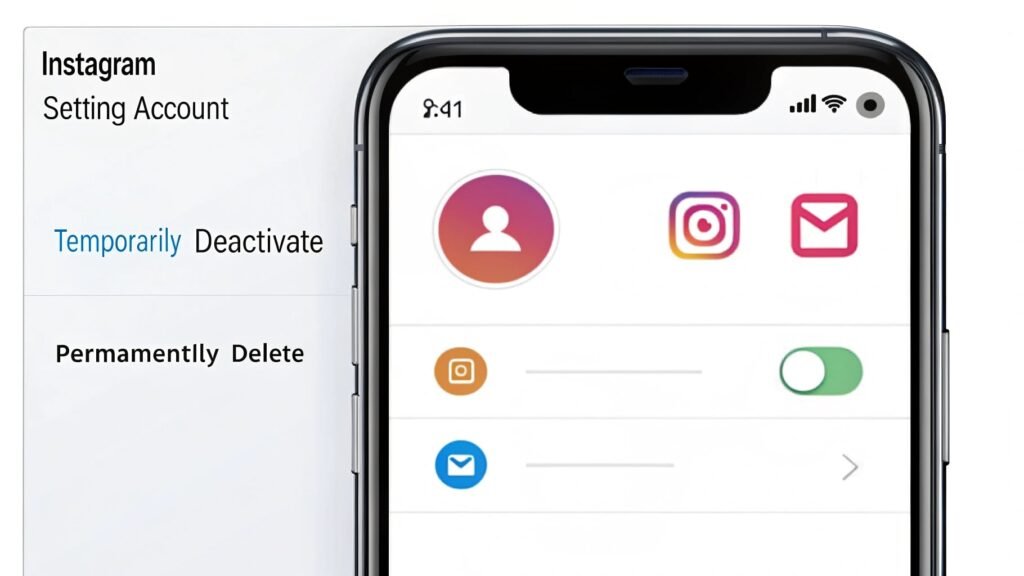
While you’re cleaning up your digital presence, you might also want to know how to delete Instagram account. The process is similar:
- Open Instagram > Settings > Account
- Tap Delete account
- Choose between temporary deactivation or permanent deletion
Just like Facebook, be sure to download your data beforehand.
Post-Deletion Strategies
Now that you’ve left Facebook, it’s time to consider your next steps.
If privacy is your primary concern, explore alternative platforms like:
- Signal or Telegram for secure messaging.
- Mastodon or MeWe for social networking with stronger privacy controls.
You can also take proactive steps to minimize online tracking:
- Use browsers with built-in privacy features (Brave, Firefox).
- Employ tracker blockers and VPNs.
For those seeking a deeper cleanse, consider using data removal services to delete your data from people-search websites and data brokers. Tools like DeleteMe, PrivacyDuck, and Incogni help you stay private beyond Facebook.
Taking control of your digital footprint after Facebook can be empowering and mentally refreshing. Choose tools and platforms that respect your privacy and foster healthier digital habits.
Conclusion
Deciding to delete your Facebook account is a personal and powerful decision. If you’ve been asking how to delete FB account permanently from mobile, this guide has walk you through every step—from preparation and backup, to final deletion and what happens next.
The process requires intention and awareness, but ultimately, it offers freedom from constant notifications, surveillance-based algorithms, and online clutter. Whether you’re focusing on mental health, digital wellbeing, or privacy, this move can be an essential step in taking back control.
Just remember: download your data, alert your contacts, and commit to staying logged out for 30 days. Once done, you’ve successfully closed one chapter and opened a more private, intentional digital life.
Also read:
- Is Mint Mobile Good? Honest Review, Pricing & Verdict!
- Lightest Mobility Scooter Medicare Approved Guide 2025!
- CleanPay Mobile App: Easy, Secure Bill Payments on the Go!