
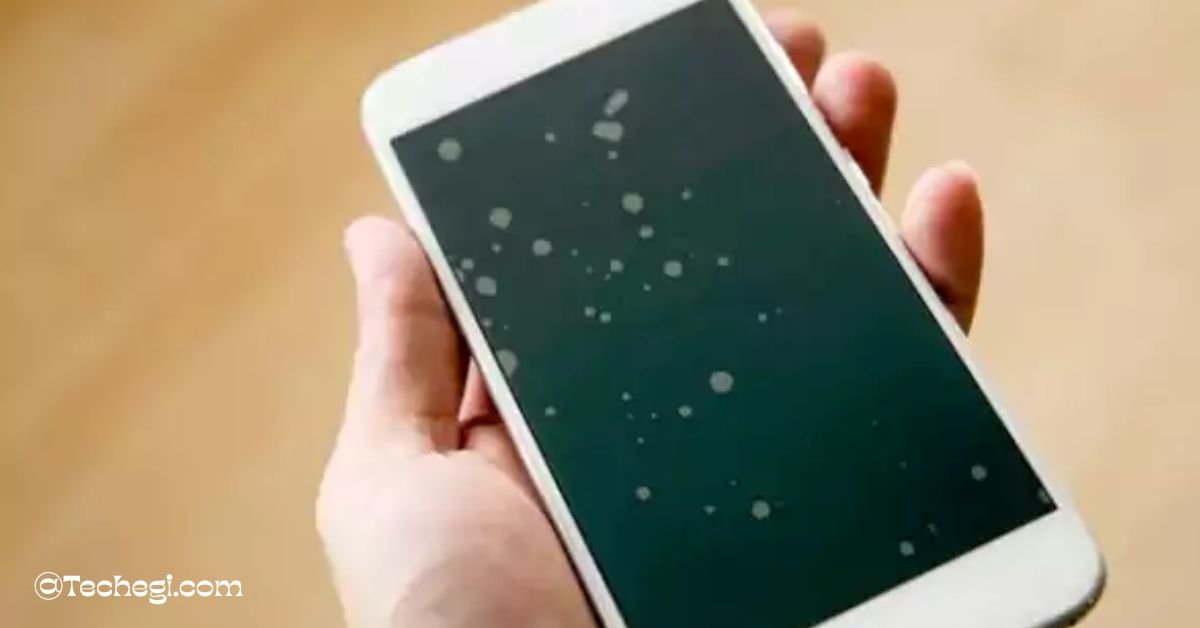
White spots on a mobile screen are usually caused by pressure damage, stuck pixels, air bubbles under a screen protector, backlight or LCD layer issues, or liquid/moisture getting inside.
Try simple fixes first (remove case/protector, use pixel-fixing apps, gentle pressure release), and if the spot persists, get a professional diagnosis — especially if the backlight or frame is bent or the battery is swollen.
1. What are white spots on mobile screen?
A white spot on a mobile screen appears as a small or large pale area that looks lighter than the surrounding display. It might be a single dot, a patch that glows brighter than nearby pixels, or a soft halo near the edge of the screen. Users often notice white spots while viewing solid backgrounds, photos, or white websites — because the contrast makes the spot stand out.
This problem can affect both LCD and OLED displays. On LCDs you’ll often see a bright spot caused by pressure or uneven backlight; on OLEDs, stuck or dead sub-pixels and burn-in can look similar. The fix depends on the cause — so diagnosing the type correctly is the first step.
2. Types of spots you might see (and what they mean)
- Small white dot (stuck pixel): A pixel that’s stuck in a light or bright state. Often fixable with software or pixel cycling.
- Bright patch / halo (pressure mark or backlight issue): Usually caused by pressure, frame bending, or uneven backlight diffusion. More likely on LCD displays.
- White bubble under protector (air bubble): Looks like a white spot but shifts when you press or remove the protector.
- Diffuse glow near edges (backlight bleed): Light leaking from the display edges, common after physical impact or manufacturing defect.
- Patches that change with orientation (liquid damage): When moisture or liquid gets inside, white areas can move or change intensity.
3. Common causes of white spots on mobile screen
Understanding why white spots appear helps choose the right fix:
- Pressure / localized trauma: Sitting on a phone, dropping it face-down, or pressing too hard can damage layers inside the display, creating white pressure spots.
- Stuck pixels / dead pixels: A stuck pixel displays one color (often white) while a dead pixel stays black. Stuck pixels can sometimes be revived.
- Air bubbles under a screen protector: Cheap protectors, poor installation, or dust can trap bubbles that appear white on certain backgrounds.
- Backlight layer or LCD diffusion problem: If the backlight layer is damaged, light won’t spread evenly — resulting in bright patches.
- Frame bending / chassis stress: A bent frame can pinch the display stack and cause spots or uneven backlight pressure.
- Swollen battery pushing the screen: A battery swelling from age or damage can press against the screen from behind, causing bright spots — this is a safety issue.
- Liquid/moisture ingress: Water can separate layers or cause localized shorting, producing white spots.
- Heat damage & OLED pixel degradation: Prolonged heat or static bright images can degrade OLED pixels causing uneven brightness or burn-in.
- Manufacturing defect: Rare but possible — some phones have display batches with defects that show after use.
4. How to diagnose the issue (quick checks)
Before opening or replacing anything, do these quick diagnostics:
- Restart your phone. Simple but it rules out temporary software glitches.
- Remove the case and screen protector. If the spot disappears after removing protector or case, re-install properly or replace the protector.
- Check under different backgrounds. Open a full white, black, and colored screen (there are apps and web pages that show full-screen colors). If the spot appears only on white, it’s brightness/backlight-related; if it persists on all colors, it’s likely a pixel or internal issue.
- Gently press around the spot: Don’t force it. Apply very light pressure with a microfiber cloth to see if the spot changes — if it does, it’s likely pressure-related or air trapped between layers.
- Tilt the screen: If the spot changes with angle, suspect liquid or layer separation.
- Run a pixel tester or pixel-fixer app: For Android, apps can cycle colors to try to revive stuck pixels. For iPhone, you can use full-screen color images or desktop tools.
- Check battery health: If the battery is swollen (screen lifting or bulging), stop using the phone and get it inspected immediately.
If simple steps don’t help, avoid aggressive home repairs (like poking inside or using strong heat) — those can make things worse.
5. Practical fixes — step-by-step
Below are the most reliable steps ordered from least invasive (safe DIY) to more advanced and pro-only fixes.
A. Remove accessories & restart
- Turn off the phone.
- Remove phone case and screen protector.
- Turn the phone back on and check the display on full white, black, and colored screens.
Why this helps: Many “spots” are screen-protector bubbles or pressure caused by tight cases. Restart rules out software.
B. Fix stuck pixels (small white dots)
Tools: Pixel-fixing apps (Android) or full-screen color cycling webpages (both platforms).
Method:
- Run a pixel fixer app for 10–30 minutes. These apps flash colors rapidly to exercise pixels.
- Alternatively, show full-screen red/green/blue/white/black cycles (cycle for 15–30 minutes).
- Reboot and recheck.
Success rate: Stuck pixels sometimes revive; dead pixels rarely do.
C. Remove air bubbles / redo protector
Method:
- Carefully peel off the protector.
- Clean the screen with a microfiber cloth and an alcohol-safe screen cleaner — remove dust.
- Use dust-removal stickers or tape to lift tiny particles.
- Reapply a high-quality tempered glass protector following manufacturer instructions.
Why this helps: A trapped bubble or dust particle under a protector often looks like a white spot on white backgrounds.
D. Gentle pressure release for pressure marks
Method:
- Turn off the phone.
- Place a clean microfiber cloth over the spot.
- Apply very gentle, even pressure in circular motions with your finger for a few seconds.
- Wait and check the screen after powering on.
Warning: Do not press hard, use tools, or poke the screen. High pressure can permanently damage pixels and layers.
E. Heat and cool cycles (use caution)
What it targets: Minor moisture or temporary stuck pixel issues.
Method:
- Don’t use direct heat (no hair dryers). Keep phone where it’s warm (not hot) for an hour — e.g., room at ~25–30°C.
- Then power off and place phone in dry, slightly cool location (not in freezer).
- Recheck.
Note: Avoid extreme temperatures. If moisture entered, the better step is professional drying/replacement than DIY thermal tricks.
F. Check for swollen battery and handle safely
Signs of swelling: Screen lifting, case deformation, or the phone feels unusually “thick.” If you suspect a swollen battery:
- Turn off the device immediately.
- Do not charge it.
- Do not puncture or press the battery.
- Take it to a certified repair center.
Why: A swollen battery pressing the display can cause bright spots and is a safety risk.
G. When pressure or backlight layer is damaged
If the spot came after a drop or heavy pressure and DIY fixes fail, the likely causes are:
- Bent frame
- Damaged backlight diffusion layer
- Delamination between display layers
Solution: Professional repair or screen replacement. They can:
- Replace the glass + LCD/OLED assembly
- Inspect the chassis and battery
- Realign frame to manufacturer tolerances
6. When to seek professional repair or screen replacement
Get professional help if:
- The white spot is large and didn’t respond to stuck-pixel fixes.
- You detect battery swelling.
- The screen is lifting or the frame is bent.
- There’s water damage.
- You’re not comfortable doing gentle fixes.
What a technician will do:
- Diagnose whether it’s a pixel, backlight, or mechanical issue.
- Replace the entire display assembly if necessary.
- Check underlying components (battery, logic board) for related damage.
7. Prevention – tips to keep white spots away
- Use a high-quality case and screen protector. Not too tight; choose reputable brands.
- Avoid pressure: Don’t sit on the phone or keep it in tight pockets with heavy items.
- Monitor battery health: Replace batteries showing swelling or severe capacity loss.
- Keep device dry: Use protective measures around water; dry immediately if liquid contact occurs.
- Avoid long static bright images: For OLED screens, use dark mode and avoid static UI elements at full brightness for long sessions.
- Temperature care: Avoid leaving the phone in very hot cars or exposed to sunlight for long periods.
- Regular cleaning: Microfiber cloth + appropriate cleaner; avoid rough cloths that could add micro-pressure or debris.
- Quality accessories: Cheap protectors and cases can trap dust or apply uneven pressure.
8. Estimated repair costs and what affects price
Repair costs vary widely by phone model, screen type (LCD vs OLED), and service provider. Typical ranges (US market, ballpark):
- Pixel-fixing / software: Free or minimal (apps).
- Screen protector replacement: $10–$40.
- Glass-only replacement (some models): $50–$150 (varies).
- Full display assembly replacement (LCD/OLED): $80–$400+ depending on flagship models.
- Battery replacement (if swelling causes spots): $40–$120.
- Authorized service centers often charge more but give OEM parts and warranty.
Factors that affect cost:
- Phone model and availability of parts.
- Whether the display is fused (glass and digitizer fused) — forces full assembly replacement.
- Warranty and accidental damage protection.
- Local labor rates and whether the repair is done by an authorized center.
Frequently Asked Questions
Q: Can a stuck pixel become permanent?
Yes. Stuck pixels can sometimes be revived using pixel-fixer tools, but some become permanently dead and require hardware replacement.
Q: Will a screen protector bubble show as a permanent white spot?
No — protector bubbles are external and removable. Clean and reapply the protector correctly or replace it.
Q: Is it safe to press the screen to fix a white spot?
Gentle, brief pressure with a microfiber cloth might help for pressure marks, but aggressive pressing can damage the screen. Proceed with caution.
Q: Could a swollen battery cause a white spot?
Yes. Battery swelling pushes on the display and can create bright spots. Stop using the phone and get the battery replaced immediately.
Q: Will resetting or updating the phone fix white spots?
Software updates rarely fix hardware issues like white spots, but restarting and checking for updates is a quick diagnostic step.
10. Wrapping up
White spots on mobile screens are a common annoyance but often solvable. Start with the safest fixes — remove protectors and cases, run pixel-fixing tools, and avoid aggressive DIY.
If the spot is large, changing, or accompanied by other issues (screen lift, swelling battery, water damage), consult a professional. Use good accessories, avoid pressure, and monitor battery health to reduce the chance of recurrence.